


Retro64 Emulator
4.31.00K Reviews
App Specs
- Version
- 2.2.1
- Updated On
- License
- Free
- Downloads
- 1,000,000+
- Developer
- Sahlaoui Mustpha
- Categories
- Arcade
- Platform
- Android
Screenshots
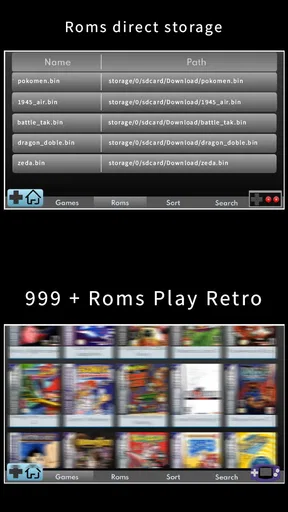
 Analysis by AppCompare
I approached Retro64 Emulator as a practical arcade utility rather than as a traditional game with its own campaign or level system. Its purpose is to emulate 64-bit games, so the experience depends heavily on how well the surrounding setup is handled. That distinction matters: if you expect an instant, self-contained arcade title, this is not that kind of download. If you want a way to work with compatible retro-style games on a modern Android device, it has a more focused appeal.
The app is free to install, carries an Everyone age rating, and comes from Sahlaoui Mustpha. It has attracted over a million installs and holds a 4.3 average from around eighteen thousand ratings, which suggests that many people find the basic idea worthwhile. I can also see why the app has a broad audience: the concept is easy to understand, the entry cost is low, and it is aimed at a familiar type of gaming hardware. Still, the first few minutes can be less straightforward than the store summary makes them sound.
Where users are most likely to get stuck
The biggest source of confusion is treating an emulator like a normal game. With a conventional arcade download, I expect to open the app and begin playing immediately. With Retro64 Emulator, the important question is whether the game material being used is compatible and available in a form the emulator can read. The app itself is the tool; it is not automatically the complete library.
That means a blank screen, an empty game list, or a title that refuses to start does not immediately prove that the emulator is broken. The problem may be the file location, an unsupported format, a damaged file, or a mismatch between the game and the emulator’s intended 64-bit focus. I found it more useful to diagnose these possibilities one at a time instead of repeatedly reinstalling the app.
Another common stumbling block is assuming that a newer phone guarantees perfect results. Android hardware can be powerful yet still behave differently from another device because of its operating-system build, graphics drivers, available storage, or background activity. Retro emulation is especially sensitive to small differences in timing and input response. A game that feels smooth on one phone may need more patience on another, even when both appear modern.
There is also a difference between launching a title and enjoying it. An emulator may open a game successfully but still leave the player with awkward touch controls, unclear button placement, or a display that does not suit the original screen shape. I would not judge the whole app after only seeing a title boot. The real test is whether the controls remain comfortable during a longer session.
One useful habit is to keep the first test simple. I would begin with one known-compatible game, avoid changing several settings at once, and note exactly what happens: does the app see the file, does it begin loading, does it reach the game screen, and does input respond? This sequence makes troubleshooting much easier than changing storage folders, display options, and controller settings simultaneously.
Worth Reading Before You Choose

EA SPORTS FC Mobile 26 Is a Bigger Football Game, but It Takes Time

Flipboard Shows What News Apps Must Do Beyond the Feed

Switching to Android Auto Means Rethinking Your Driving Routine

Google Calendar Makes a Crowded Week Easier to Manage

Ludo King Makes the Most of the Minutes Between Plans

Baby Panda World Brings Quick Play to Modern Phones, but Its Game Library Feels Busy
Start with a clean, legal game source
Because an emulator does not replace the games it is designed to run, I recommend using game files that you are legally entitled to use. I would avoid random download pages, especially those that bundle unfamiliar installers or demand unusual permissions. Apart from the legal concern, unofficial files are a frequent reason for crashes and missing content. A clean source gives you a fairer test of the application itself.
File naming can help with organization, but it does not make an incompatible file compatible. I would create one clearly named folder for the games I intend to test, keep backup copies elsewhere, and avoid scattering duplicates across several locations. If the app offers a file picker or library scan, pointing it at one tidy folder reduces the chance of selecting an incomplete or unrelated file.
Setup checks that save time
Retro64 Emulator supports Android devices running version 6.0 or later, so the first check is straightforward: confirm that the phone or tablet meets that requirement. Compatibility with the operating system is only the starting point, but it removes one avoidable problem. I would also make sure the device has enough free space for the emulator, its temporary files, and the games being tested.
After installing, I would open the app once before importing anything. This lets the initial interface finish setting itself up and gives me a chance to understand where it expects games to appear. If Android asks for access to files, I would read the request carefully and grant only what is needed for selecting the content I plan to use. If the system blocks access, checking Android’s app settings is more sensible than repeatedly tapping the same import button.
It is worth testing the app with the phone in the orientation that feels natural for the game. Some retro titles are more comfortable in landscape, while others may work better with a compact portrait layout. Even without changing advanced options, orientation affects where thumbs rest and how much of the screen is covered by virtual controls. I would decide this before adjusting anything else because it changes the entire feel of a session.
Touch controls deserve an early trial, not an afterthought. I would play a low-pressure section first and check whether the virtual buttons are easy to reach without blocking important visual information. Fast arcade games punish cramped layouts, and a control arrangement that looks fine in a menu may become tiring after several minutes. If the app supports an external controller on your device, that can be a better choice for longer sessions, but I would not assume every controller or mapping will work identically.
Another practical check is the phone’s battery and performance state. Battery-saving modes, heat, and many active background apps can affect responsiveness. I would close demanding apps, disable an aggressive power-saving profile for the test, and avoid judging performance while the device is already hot. This is not about chasing maximum speed; it is about creating stable conditions so that any remaining problem is easier to identify.
The current version is 2.2.1, and keeping the installation current is sensible when an update is available through the normal app channel. An update can improve compatibility, but it can also change menus or reset preferences, so I would make a note of any settings that matter before updating. The app is free, although in-app purchases are listed at $3.99 per item. I would check what an optional purchase changes before paying, particularly if the free experience already covers the small selection of games I want to test.
A reliable first-session routine
My preferred setup routine is deliberately boring. I install the app, open it once, confirm the Android version requirement, prepare one clean game file, and select it from a single folder. Then I test basic input, audio, display orientation, and save behavior separately. This approach takes longer than tapping through every menu, but it gives me a clear baseline and avoids confusing one problem with another.
I would also keep expectations realistic about save handling. If the app presents a save option, I would test it with a harmless point in the game, close the emulator normally, and reopen it to see whether the progress returns. I would not rely on an untested save state for an important session. Backing up any valuable progress is especially sensible before moving files, clearing app storage, or installing an update.
For a family device, the Everyone rating makes the app broadly approachable, but that does not mean every game used with it will feel equally suitable for every player. The emulator is a container for compatible game experiences, so I would still choose the individual games with the intended player in mind. This is one reason I see the age label as a useful starting point rather than a complete description of everything someone may open through the app.
Recovering a workflow when something fails
If a game does not appear in the library, I would first confirm that the file is in the folder I selected and that the app can access that location. Next, I would check whether the file is complete and in a format the emulator is expected to handle. I would avoid renaming extensions merely to make them look familiar; that changes the label, not the contents.
If the title appears but crashes during loading, I would close other apps, restart the emulator, and try the same file again without changing several settings. A second clean launch can distinguish a temporary glitch from a repeatable compatibility issue. If another known-compatible file works while the original does not, the evidence points more toward that particular file or title than toward the whole installation.
When the game runs but feels slow, I would look at the simplest causes first: heat, battery-saving behavior, background downloads, and an overloaded device. I would then try a lower visual demand if the app exposes an appropriate option, but I would change only one setting at a time. The goal is to find the smallest adjustment that improves play without making the image unpleasant or introducing new graphical problems.
Audio trouble deserves its own test. I would check the phone’s media volume, silent or focus modes, and whether another application has taken control of audio. If the picture is responsive but sound is missing, restarting the session may help reveal whether the issue is temporary. I would not assume that changing graphics settings will fix an audio problem; separating the symptoms keeps the diagnosis focused.
Input problems can be more subtle. If touch buttons respond inconsistently, I would check whether a screen protector, edge gesture, or accidental palm contact is interfering. I would also test the same controls in a menu and inside the game. If menus respond but gameplay does not, the issue may be the title’s control mapping rather than the phone’s touchscreen. A physical controller can be a useful comparison, provided it is already supported and properly paired by Android.
One of the most valuable habits is to preserve a working baseline. Once I find a combination of game file, folder, orientation, and control layout that works, I would avoid changing everything just to explore. I would record the successful arrangement in a note and make experimental changes one by one. This is particularly helpful for users who switch between several games with different control needs.
When reinstalling is not the best answer
Reinstalling can clear a damaged installation, but it may also remove local preferences or progress depending on how Android handles the app’s storage. I would treat it as a later step, not the first response to every error. Before uninstalling, I would preserve any saves or configuration that I care about and confirm that the original game files are still safely stored outside the app.
Clearing app storage is even more disruptive than clearing a temporary cache, so I would use it only when I understand what may be lost. A restart, a fresh file scan, or reselecting the game folder is less destructive. This kind of cautious workflow is not glamorous, but it prevents a small launch problem from becoming a lost-progress problem.
When the emulator is not the cause
It is easy to blame Retro64 Emulator because it is the visible part of the setup. In practice, the phone, the file, the operating system, and the game itself all contribute to the result. If only one title fails while others launch, I would investigate that title first. If every title fails to appear, I would inspect storage access and folder selection before changing performance settings.
Likewise, touch latency may come from the device’s display processing rather than from the emulator. A phone with a heavily customized gaming mode may apply its own overlays or gesture handling. I would temporarily disable overlays and test again, especially if taps seem delayed only near the screen edges. This comparison can save a lot of time and avoids blaming the wrong component.
Network conditions are another possible distraction. The emulator itself may not need a connection for ordinary local play, but downloading files, updating the app, or restoring content through another service can introduce separate failures. I would complete the local test first, then add one online-related step at a time. That makes it clear whether the problem is with the emulator or with the surrounding download process.
There is also a question of personal fit. Someone who wants a polished, controller-ready console experience with automatic libraries and extensive customization may prefer a more established emulator aimed at a specific platform. Someone who wants a simple, free way to explore compatible 64-bit games on Android may find this app more approachable. The right choice depends less on the headline feature and more on how much setup work the user is willing to do.
I would skip it if my priority were a modern arcade game with built-in content, achievements, and a carefully designed touch interface. I would also be cautious if I dislike troubleshooting files or adjusting controls. The app makes more sense for a patient retro player who understands that emulation is a chain of compatible parts rather than a single-button experience.
My practical verdict after using it
Retro64 Emulator has a clear purpose and a low barrier to trying it: it is free, supports Android 6.0 and newer, and is aimed at running 64-bit games in a familiar arcade-oriented setting. Its 4.3 average and large install base show that the basic proposition connects with many users. I think its strongest quality is accessibility of concept, not guaranteed simplicity of every setup.
The app rewards an organized approach. Use a trustworthy game source, keep files in one clear folder, test one title at a time, and separate storage, performance, graphics, audio, and input problems. Those steps are more important here than endlessly searching for a perfect setting. They also make it easier to tell when a particular game or phone is the real limitation.
My favorite practical insight is to treat the first successful launch as a reference configuration. Once the game opens and the controls feel acceptable, save that arrangement before experimenting. My second is to test a physical controller, when available, as a diagnostic comparison rather than assuming it is automatically better. My third is to protect progress before clearing storage or reinstalling, because recovery is much harder after the fact.
There is friction, especially for people expecting a complete game library or instant plug-and-play behavior. Optional purchases at $3.99 per item also deserve a careful look before spending, since the value depends on what each item actually adds to your particular use. Still, those caveats do not erase the app’s usefulness. For a reader who wants a free Android emulator and is comfortable handling compatible game files, I would recommend giving it a measured test. For everyone else, a self-contained arcade game or a more specialized alternative may be the less frustrating choice.
Overall, I see it as a practical starting point rather than a universal solution. It can turn an Android phone into a convenient retro gaming device, but the quality of that experience depends on thoughtful setup and realistic expectations. If you are willing to troubleshoot calmly and keep your workflow tidy, Retro64 Emulator is worth trying; if you want zero configuration, it is better to choose something designed around immediate play.
Pros
- Runs many classic Nintendo 64 games with smooth performance on supported devices.
- Customizable on-screen controls make handheld play more comfortable.
- Supports save states for quick progress recovery during difficult sections.
- Offers graphics and audio options to improve the experience on newer phones.
- Useful for testing homebrew and legally dumped personal game backups.
Cons
- Game compatibility and performance can vary significantly between devices.
- Requires users to provide their own legally obtained game files.
- Touch controls may feel awkward for games requiring precise analog movement.
- Some features or settings may be limited behind ads or in-app purchases.
- Copyright and ROM legality rules differ by country and require user awareness.
FAQs for Retro64 Emulator
What is Retro64 Emulator, and what platforms does it support?
Retro64 Emulator is designed to let users play classic Nintendo 64-style games on a modern mobile device. Before downloading, check the store listing carefully because compatibility can vary between Android and iOS versions. The emulator itself may not include any games, and users are generally expected to use legally obtained game files that they are authorized to run.
Does Retro64 Emulator include Nintendo 64 games?
Usually, an emulator is only the software needed to run compatible game files and does not provide copyrighted games with the download. Retro64 Emulator may require you to import your own ROM files, BIOS files, or other supporting data, depending on the version. Only use copies made from games you legally own and follow the laws applicable in your country.
How well does Retro64 Emulator perform on phones and tablets?
Performance depends heavily on your device’s processor, graphics hardware, operating-system version, and the specific game being emulated. More demanding titles may experience slowdowns, graphical glitches, audio stuttering, or crashes on older hardware. On a capable device, adjusting graphics, frame-rate, and resolution settings can improve playability, although higher-quality settings may increase battery use and heat.
Can I use a controller with Retro64 Emulator?
Retro64 Emulator may support touchscreen controls and, depending on the platform and app version, external Bluetooth or USB controllers. A physical gamepad is often more comfortable for Nintendo 64 games because the original control layout is difficult to reproduce accurately on a touchscreen. Compatibility can vary, so verify controller support and button-mapping options before downloading or purchasing the app.
Is Retro64 Emulator safe and legal to download and use?
Download Retro64 Emulator only from a reputable official store or a trusted developer source, and review its permissions, privacy information, update history, and user feedback before installing it. The legality of emulation software and game ROMs differs by region. While emulators can be legal, downloading copyrighted games or BIOS files without permission may violate copyright law, even if the emulator itself is legitimate.


